How to Purchase FWCMS Foreign Worker Insurance via eInsurans
Delays in foreign worker permit applications in Malaysia often occur when insurance isn’t successfully reflected in the Foreign Worker Centralised Management System (FWCMS) application.
Today, foreign worker insurance purchases must be made using the correct ITR number so the policy is properly linked in FWCMS—making accuracy and timing vital for every renewal.
When employers rely on agents or indirect handling, the risk of payment failures, submission mismatches, and avoidable rework increases. If the insurance status doesn’t update correctly in FWCMS, permit renewals can’t move forward to approval.
A more reliable approach is self-purchase through eInsurans. eInsurans’ offline self-purchase helps you avoid common payment and update issues, with confirmation sent to FWCMS once payment is completed.
In this guide, you’ll learn how to purchase FWCMS foreign worker insurance via eInsurans step by step—so you can complete renewals faster and stay compliant.
Why Self-Purchase Beats Direct FWCMS Payment
Common FWCMS Payment Problems
Employers using FWCMS for insurance payments can face issues that create uncertainty during permit renewals.
One common problem is that FPX payments are being deducted without an immediate status update. Employers may not know if insurance has been recorded, leading to stalled submissions or duplicate attempts.
Another issue is the 24 to 48-hour processing delay before FWCMS reflects the payment. Even a short delay can push applications past tight renewal deadlines.
Limited payment-specific support adds to the challenge, leaving employers unsure whether to wait, retry, or cancel a transaction.
These are operational risks, not compliance failures, but they can disrupt otherwise smooth permit renewals.
eInsurans Self-Purchase Advantages
Self-purchasing foreign worker insurance through eInsurans helps employers complete the FWCMS insurance step with fewer disruptions, especially during time-sensitive renewals.
- Automatic FWCMS update
eInsurans is integrated with the FWCMS system via the official insurance API. Once payment is completed, FWCMS is automatically updated to reflect that insurance has been purchased.
- Reliable, always-available platform
The e-commerce system is powered by Financial Link, the insurance industry’s trusted agency infrastructure and official FWCMS insurance gateway provider, ensuring stable performance during peak periods.
- Flexible payment options
Employers can pay via credit or debit card, FPX, or FPX B2B, which supports corporate accounts with maker and checker approval requirements.
- Insurance-specific human support
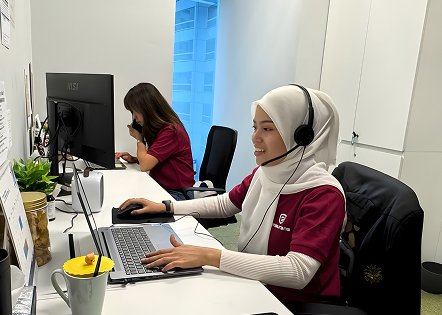
Support is handled by insurance specialists who understand both policy requirements and FWCMS workflows, providing more targeted assistance when issues arise.
These features make self-purchase via eInsurans a more dependable way to complete foreign worker insurance while remaining fully aligned with FWCMS requirements.
Trusted Foreign Worker Insurance Solutions
Digital SPIKPA IG insurance with seamless FWCMS integration, secure payments, and real human support.
Insurance Requirements You Must Confirm Before Purchase
Before purchasing insurance for your foreign employees, employers should confirm that they are buying the types of insurance required by Immigration.
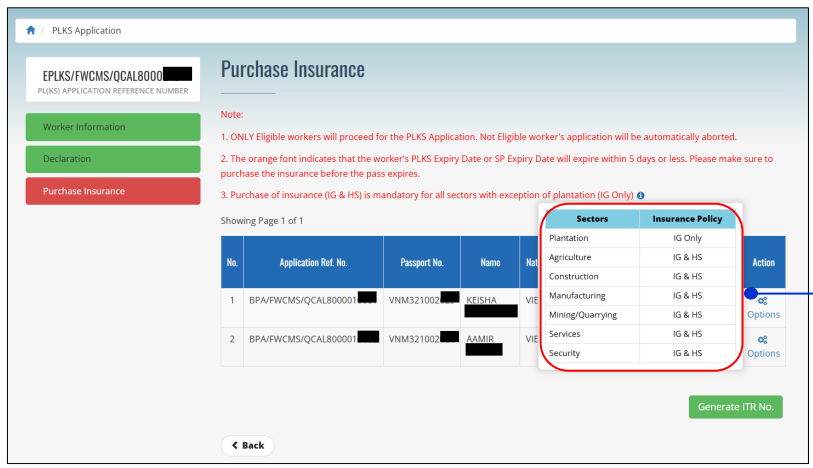
Insurance purchase also requires an Insurance Transaction Reference (ITR) number, which is unique for each foreign employee. This number links the worker’s permit record to the insurance provider and must be generated before completing the purchase.
Two policies are mandatory for most foreign workers in Malaysia:
- Foreign Worker Hospitalisation and Surgical (FWHS/SPIKPA) & Insurance Guarantee (IG)
Mandatory personal accident and hospitalisation cover.
Regulated cost: RM130 total (RM120 per worker before SST + RM10 stamp duty per batch renewal).
- Foreign Workers Insurance Guarantee (FWIG)
Covers repatriation and employer liabilities. Premium varies based on worker nationality.
Failing to maintain valid insurance can lead to permit rejection, bond forfeiture, or daily overstay penalties, which may result in rehiring costs and project delays.
How to Generate an ITR Number on FWCMS for Self-Purchase
The ITR number is only valid for 14 days and you must complete your insurance transcation before the deadline.
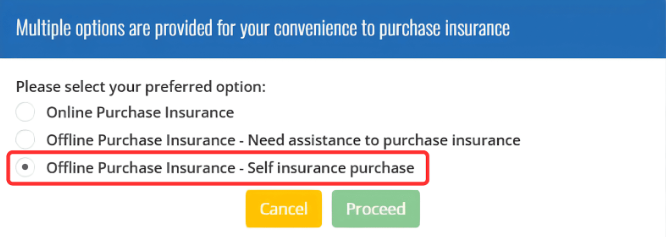
3. On the next page, choose the Offline Purchase Insurance – Self Insurance purchase selection and click Proceed.
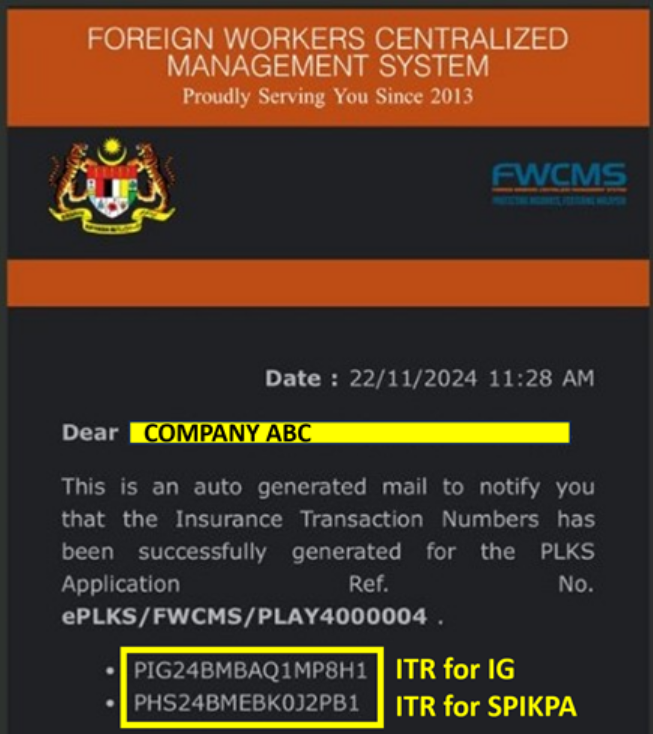
4. The system will send an email containing your ITR number to your registered email address. You will need to copy and use the number when buying your worker insurance on eInsurans.
Steps to Purchase SPIKPA IG Insurance on eInsurans
Portal Login
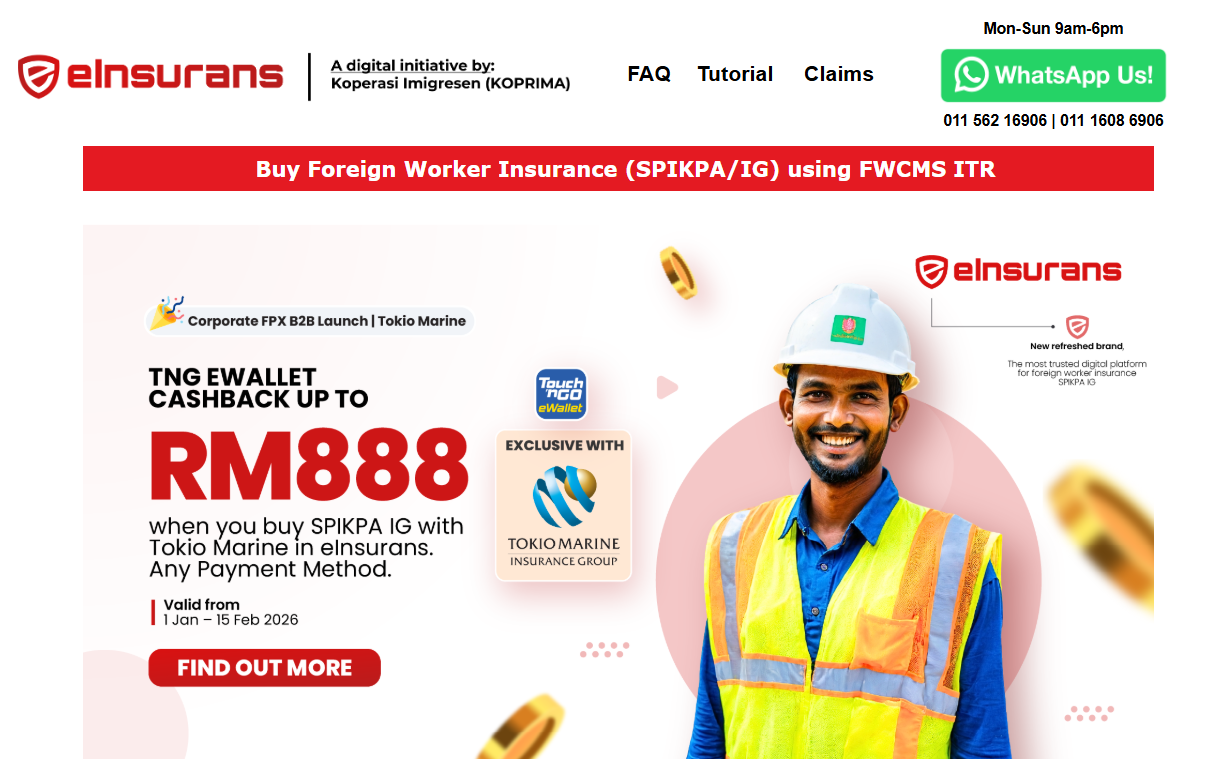
1. Go to the official eInsurans website.
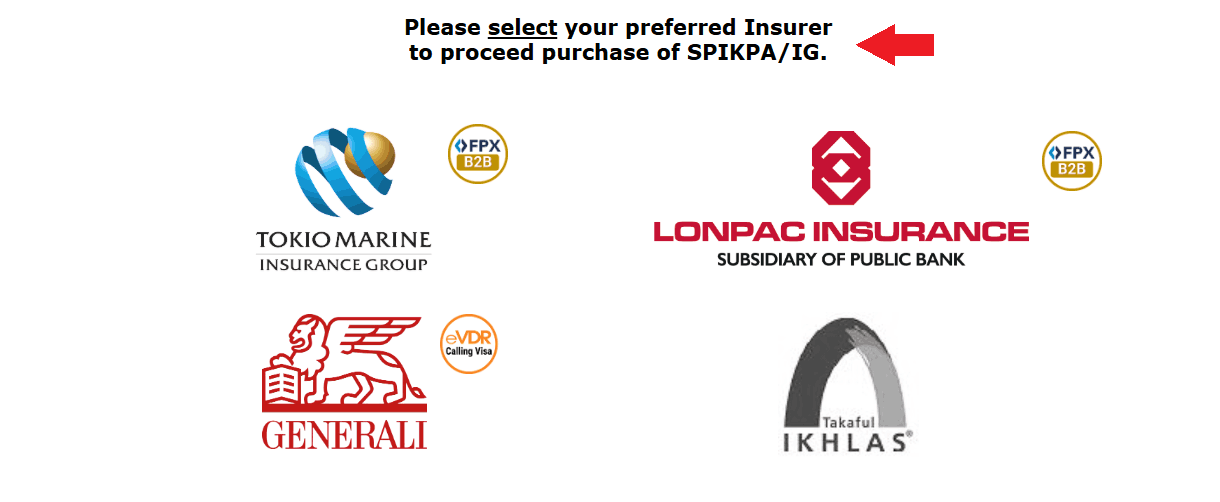
2. Select your preferred insurance service provider
3. Enter the following details in the text fields:
- ITR number for IG
- ITR number for SPIKPA
- Your SSM (Business Entity Registration) number or Tax Identification Number (TIN)
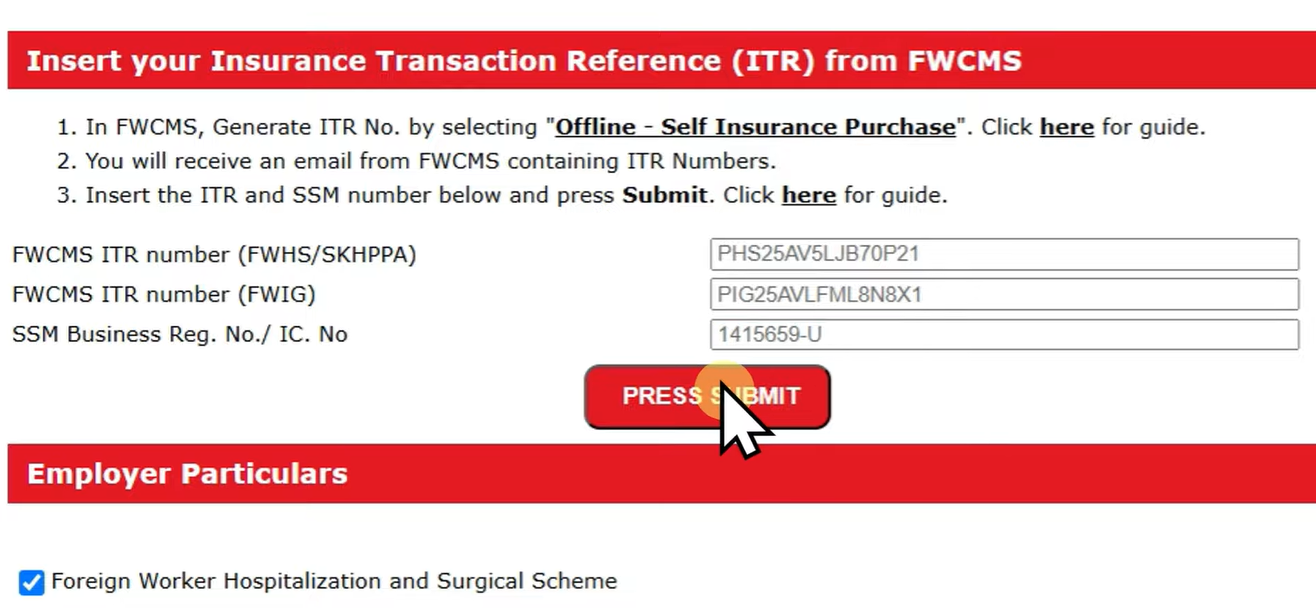
4. Click Submit. Your employer details will be auto-populated.
Enter Worker and Insurance Details
1. You will be directed to the Foreign Workers’ Hospital and Surgical (HS) Scheme section. Employer and worker information will be auto-filled.
2. Update the insurance start date under the Period of Cover section:
- Set it to the day after the permit expiry date
(Example: Permit expires 30/05/2026 → Start date: 01/06/2026)
If the permit has already expired, select today’s date.
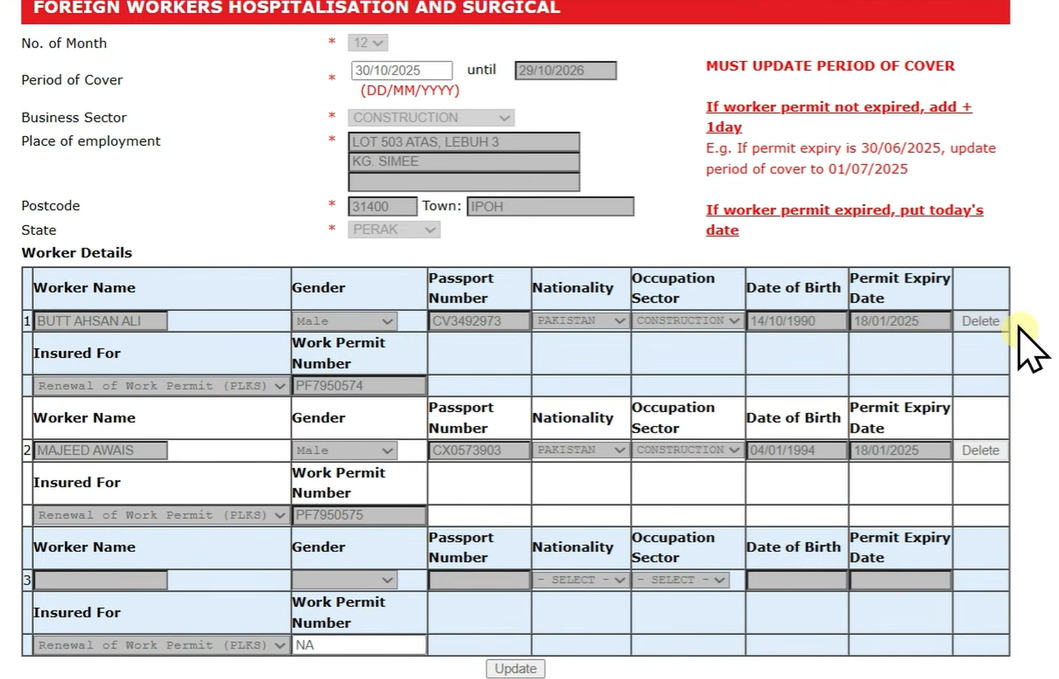
3. In the Immigration State section, select the state based on your business address.
Payment
1. Click Next → Payment to complete your purchase.
After successful payment:
- The policy can be downloaded immediately.
- A copy will be emailed automatically to your registered address.
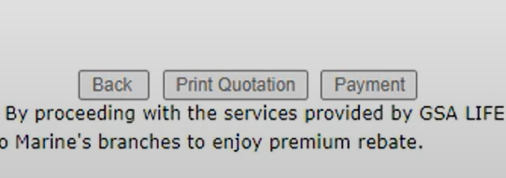
Important: Do not click Print Quotation at this stage. Doing so will clear all entered data, and you will need to re-enter the ITR, SSM, Period of Cover, and Immigration details.
Check FWCMS Insurance Status After Purchase
1. After purchasing SPIKPA IG via eInsurans, you will receive an email titled Insurance Purchase Successful.
2. FWCMS status will update to:
- Insurance Purchased, or
- Pending JIM Approval
3. Processing time: Usually 10 minutes to a few hours.
4. Once the status becomes Insurance Purchased, the permit renewal process continues automatically.
Troubleshooting Common Issues
This section covers issues you may face while using the eInsurans portal to complete your insurance purchase, along with clear steps to fix them.
Form Data Lost When Going Back
If you press the Back button during the process and the form fields are cleared, this is usually caused by your browser’s caching settings.
Avoid using the browser back button during the purchase flow. If information disappears, re‑enter the required details and proceed from the current page only.
Session Invalidated Error
If you receive a Session invalidated message and cannot continue, this may happen if:
- You stayed on the page too long
- You opened multiple eInsurans tabs
- You clicked back during payment
To fix this:
1. Clear the eInsurans cache in your browser settings.
2. Close duplicate tabs.
3. Reopen the portal and restart the process.
Payment Failure or Timeout Codes
Sometimes the portal shows a payment error or timeout code. Common reasons include connection timeouts, bank declines, or service unavailability.
Standard response codes include:
- Bank response errors (GNR9993–GNR9999)
- 503 (Service temporarily unavailable)
- 504 (Connection timeout)
If you see a payment failure, retry the transaction.
If money was deducted but the payment did not go through, contact eInsurans support for verification and next steps.
Maintaining Compliance After Purchase
Completing the insurance purchase is only the first step. Employers must ensure coverage remains active throughout the worker’s permit period.
1. Set Renewal Reminders
- Mark your calendar maximum 3 months before expiry to prevent lapses.
- FWCMS checks insurance validity during permit renewals, so timely renewal avoids application rejections.
2. Avoid Coverage Gaps
- Cancelling or lapsing insurance violates permit conditions.
- Continuous coverage is required to pass audits and prevent permit revocation.
3. Handling Claims
- SPIKPA IG: Use the certificate at government hospitals for cashless admission.
- FWIG: Repatriation is triggered by Immigration or an employer request.
4. Keep Records
- Store PDFs of certificates and transaction confirmations for easy access during renewals or claims.
Maintaining active coverage ensures legal compliance and minimises operational risks such as permit rejections, delays, or financial penalties.
Easy Self-Insurance Purchase with eInsurans
Securing foreign worker insurance through the self-purchase method on eInsurans simplifies the FWCMS process while maintaining full regulatory compliance. By avoiding direct FWCMS payment gateway risks, employers reduce delays caused by failed transactions or slow status updates.
Remember that each ITR number is valid for only 14 days, so timely action is essential once it is generated. Just as important, insurance coverage must remain active throughout the entire permit period to prevent renewal rejection.
Ready to streamline your foreign worker insurance process? Purchase your SPIKPA IG policy today with seamless FWCMS integration, flexible payment options, and insurance-focused support.